

What’s the Real Difference Between 4K and 1080p Golf Simulator Projectors?
A 4K golf simulator projector displays four times the pixels of a 1080p model, delivering 3840×2160 resolution versus 1920×1080. This means sharper ball flight tracking, crisper fairway details, and more immersive visuals during your indoor golf sessions. In June 2026, 4K projectors have become more affordable than ever, though 1080p remains viable for budget-conscious buyers. The choice depends on your launch monitor, screen size, viewing distance, and budget constraints. Most home golfers see noticeable quality improvements with 4K, especially on screens larger than 100 inches.
The pixel density difference affects how clearly you see the golf ball’s trajectory, green contours, and hazard details. 1080p works adequately for smaller setups under 80 inches, while 4K excels at larger installations. Your launch monitor’s output quality also matters—pairing a premium Uneekor or Trackman system with 1080p wastes potential, whereas a basic Shot Scope benefits less from 4K. Resolution alone doesn’t guarantee better gameplay experience; brightness, contrast, and color accuracy matter equally.
Key Takeaway: 4K offers superior image clarity and future-proofing, but 1080p remains practical for smaller rooms and tight budgets.
How Does Resolution Impact Your Golf Simulator Experience?
Higher resolution directly affects your ability to read greens, judge distances, and enjoy realistic ball flight visualization. With 4K, you’ll notice individual grass blades on fairways and fine details in hazard positioning. 1080p provides acceptable clarity for basic swing analysis and casual play, but lacks the fine detail that competitive golfers demand. The difference becomes most apparent when analyzing short game shots and reading complex green breaks. On screens under 90 inches, both resolutions perform similarly; above 100 inches, 4K’s advantage becomes obvious.
Visual Clarity and Ball Flight Tracking
4K projectors render ball flight paths with smoother curves and cleaner lines compared to 1080p’s pixelated appearance. Your launch monitor’s camera system works more effectively with higher resolution displays, capturing subtle swing details. This matters when reviewing shot data or analyzing swing mechanics frame-by-frame. Professional-grade systems like Trackman and Uneekor are optimized for 4K displays, maximizing their tracking accuracy benefits.
1080p ball flight still provides useful swing feedback, especially for distance and direction analysis. However, you’ll notice slight pixelation on curved shots and less smooth animation during replays. Budget launch monitors like the Shot Scope LM1 pair reasonably with 1080p since their output resolution is already limited.
Screen Size Considerations
Resolution requirements scale with screen dimensions. A 70-inch screen displays 1080p adequately, while an 120-inch screen demands 4K to avoid visible pixelation. Most home simulators use 100-110 inch screens, making 4K the recommended choice for 2026. Your viewing distance from the screen also factors in—sitting 10 feet away requires higher resolution than sitting 6 feet away.
- Under 80 inches: 1080p acceptable, 4K optional
- 80-100 inches: 4K recommended for best clarity
- Over 100 inches: 4K essential to avoid pixelation
- Viewing distance under 6 feet: prioritize 4K
- Viewing distance over 10 feet: 1080p may suffice
Key Takeaway: Screen size and viewing distance determine whether 4K’s resolution advantage becomes visible to your eyes.
What Are the Cost Differences Between 4K and 1080p Projectors in 2026?
As of June 2026, 4K golf simulator projectors cost 30-50% more than comparable 1080p models. Entry-level 4K projectors start around $2,000-$2,500, while quality 1080p options range from $1,200-$1,800. Premium 4K models exceed $4,000, offering features like enhanced brightness and color accuracy. The price gap has narrowed significantly since 2024, making 4K increasingly attractive for long-term investments. Your total simulator budget should allocate 25-35% toward the projector; prioritizing resolution helps future-proof your setup.
Budget Allocation Strategy
Smart home golf simulator builders balance projector cost with launch monitor quality and screen investment. A $2,500 4K projector paired with a quality impact screen creates better results than a $1,500 1080p projector with a cheaper screen. Consider your total budget: if building a $5,000 system, allocate roughly $1,500-$2,000 to the projector. If budgeting $8,000+, 4K becomes the obvious choice without financial strain.
- $3,000-$5,000 total budget: 1080p projector recommended
- $5,000-$8,000 total budget: 4K projector worthwhile
- $8,000+ total budget: 4K projector essential
- Used 4K projectors offer 20-30% savings over new models
- Refurbished units from manufacturers carry full warranties
Key Takeaway: 4K costs more upfront but provides better value over a 5-10 year simulator lifespan.
Which Launch Monitor Systems Benefit Most from 4K Resolution?
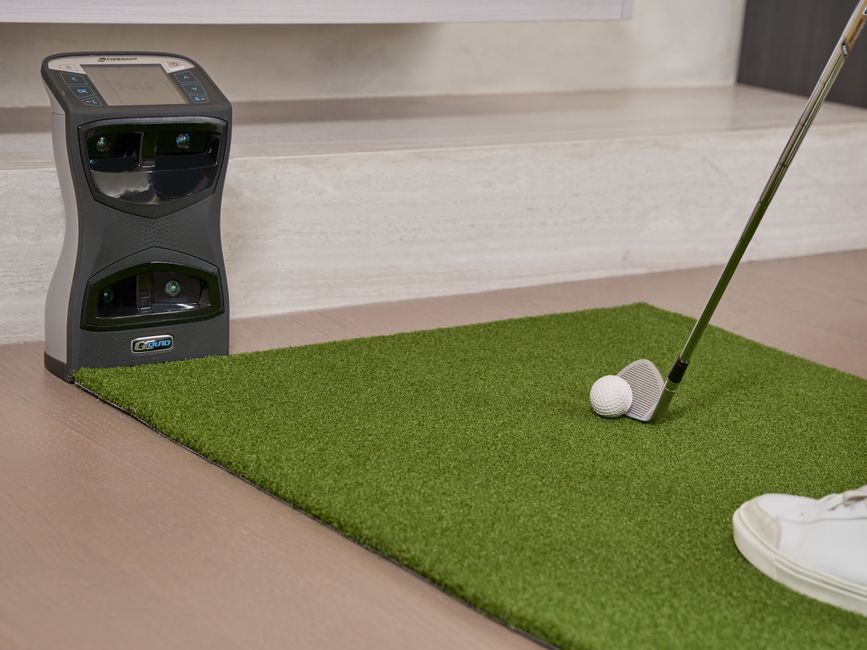
Premium launch monitors like Trackman, Uneekor, and GCQuad fully utilize 4K displays, rendering detailed ball flight data and precise green visualization. Mid-range systems including Garmin Approach R50 and Shot Scope perform well with either resolution, though 4K enhances their capabilities. Budget monitors like the Shot Scope LM1 show minimal visual improvement with 4K since their output resolution is inherently limited. Your launch monitor’s price point should guide your projector resolution choice—premium systems deserve 4K, budget systems work fine with 1080p.
Premium System Compatibility
Trackman, Uneekor Eye Mini Lite, and GCQuad are engineered for high-resolution displays. These systems deliver rich graphical data, detailed fairway imaging, and professional-grade visualization that 4K projectors showcase beautifully. If you’ve invested $3,000+ in a launch monitor, pairing it with 1080p represents a significant compromise. The Uneekor Eye Mini Lite indoor setup particularly benefits from 4K’s enhanced clarity.
Garmin Approach R50 sits in the mid-premium range, offering solid graphics that scale well to both resolutions. The Garmin Approach R50 Home Tee Hero setup performs admirably with either 4K or 1080p, though 4K provides noticeably better fairway detail.
Budget System Considerations
The Shot Scope LM1 and similar budget monitors output lower-resolution graphics, limiting their 4K display potential. These systems still function perfectly with 1080p projectors, delivering reliable swing data and course simulation. Upgrading to 4K for a budget launch monitor represents diminishing returns on your investment. Save the 4K premium for later when upgrading to a more capable system.
Key Takeaway: Match projector resolution to your launch monitor’s capabilities for optimal value.
What Technical Specifications Should You Compare Beyond Resolution?
Resolution matters, but brightness, contrast ratio, color accuracy, and throw distance equally impact your simulator quality. A 4K projector with poor brightness performs worse than a bright 1080p model in a lit room. Lumens rating (brightness) should exceed 3,000 for golf simulators; 4,000+ provides better performance with ambient light. Contrast ratios above 10,000:1 reveal fine details in shadowed areas like bunkers and water hazards. Color accuracy affects how realistically greens and fairways appear on screen.
Brightness and Contrast Requirements
Golf simulator projectors need sufficient brightness to overcome ambient light and maintain image clarity on large screens. 3,000 lumens represents the minimum for comfortable viewing; 4,000+ lumens handles rooms with windows or overhead lighting. Higher contrast ratios make shadows appear deeper and highlights brighter, improving depth perception during ball flight visualization. Both 4K and 1080p projectors offer excellent brightness and contrast options in 2026.
- Minimum brightness: 3,000 lumens for dark rooms
- Recommended brightness: 4,000+ lumens for ambient light
- Contrast ratio: 10,000:1 or higher preferred
- Color gamut: 100% DCI-P3 or better for accuracy
- Input lag: under 50ms for responsive gameplay
Throw Distance and Installation
Projector throw distance determines how far from your screen the unit must mount. Short-throw projectors (0.3-0.5 throw ratio) mount close to the screen, ideal for compact simulator rooms. Standard throw projectors (1.0-1.5 ratio) require more distance but offer wider lens options. The BenQ LK936ST installation distance guide details throw distance calculations for popular models.
Key Takeaway: Brightness, contrast, and throw distance matter as much as resolution for simulator performance.
How Should You Set Up Your Screen and Projector for Optimal Image Quality?
Proper installation maximizes your projector’s resolution benefits, whether 4K or 1080p. Your impact screen quality directly affects how crisply the projector’s image appears. A high-quality screen with proper tensioning reveals resolution differences; a wrinkled or sagging screen masks 4K advantages. Mounting height, angle, and distance from the screen determine image sharpness and color accuracy. Professional installation ensures your projector’s full potential is realized.
Screen Selection and Installation
Impact screens designed for golf simulators feature specialized fabrics that handle ball impacts while maintaining image clarity. Multi-layer and poly spacer screens both work with 4K and 1080p projectors; the choice depends on your launch monitor’s requirements. Proper screen tensioning prevents wrinkles that degrade image quality and tracking accuracy. Learn more about screen options in our guide comparing poly spacer vs multi-layer impact screens.
Screen wrinkles significantly impact both resolution types, but damage becomes more obvious with 4K’s higher pixel density. Address wrinkles immediately using our complete screen wrinkle repair guide. Maintain consistent room temperature to prevent screen expansion and contraction that causes wrinkles.
Projector Mounting and Calibration
Mount your projector perpendicular to the screen for accurate image projection without keystoning distortion. Adjust focus carefully—4K projectors reveal focus imperfections more obviously than 1080p. Calibrate color temperature and brightness settings to match your room’s lighting conditions. Many projectors include color calibration tools; use them to optimize image quality. Test ball flight visualization at various distances to ensure clarity throughout your swing zone.
- Mount projector perpendicular to screen surface
- Adjust focus until image sharpness peaks
- Calibrate brightness for your room’s ambient light
- Set color temperature to 6500K standard
- Minimize keystoning for accurate image geometry
Key Takeaway: Proper installation and screen quality matter more than resolution alone for optimal simulator performance.
What Are the Practical Tips for Choosing Between 4K and 1080p for Your Home Golf Simulator?
Making the right choice requires evaluating your specific setup, budget, and long-term goals. Consider your room size, screen dimensions, launch monitor quality, and viewing distance before deciding. Test both resolutions if possible—many retailers offer demonstration setups. Think about your timeline: if building your simulator in 2026 for 5+ years of use, 4K’s longevity justifies the premium cost. If upgrading frequently or on a tight budget, 1080p remains practical.
Decision-Making Checklist
- Measure your screen size: over 100 inches strongly favors 4K
- Evaluate your launch monitor: premium systems deserve 4K
- Calculate total budget: allocate 25-35% to projector
- Check your room’s ambient light: bright rooms benefit from 4K’s clarity
- Consider viewing distance: sitting closer requires higher resolution
- Plan upgrade timeline: 4K provides better 5-10 year value
- Visit showrooms: see both resolutions side-by-side before purchasing
Integration with Other Simulator Components
Your projector choice affects other system components. Higher-resolution projectors pair best with quality launch monitors, premium impact screens, and proper lighting control. A complete Garmin R10 home simulator space setup benefits from thoughtful component selection. Consider how your projector integrates with launch monitor software, screen technology, and room acoustics for cohesive performance.
Accessories like Power Tee auto tee systems and quality golf mats enhance your overall experience regardless of projector resolution. Focus on creating a well-rounded simulator rather than optimizing single components.
Key Takeaway: Choose 4K for large screens and premium launch monitors; select 1080p for budget builds and smaller setups.
Frequently Asked Questions
Can I upgrade from 1080p to 4K later without replacing my entire setup?
Yes, projectors are modular components. You can replace your 1080p projector with 4K later without changing your screen, launch monitor, or room structure. However, you’ll need to ensure your mounting hardware accommodates the new projector’s dimensions and weight. Plan your installation space accordingly to allow future upgrades. Keep your original projector’s throw distance specifications for reference when upgrading.
Does 4K require faster internet or better launch monitor software?
No, resolution doesn’t affect internet speed or software requirements. Your launch monitor’s software outputs the same data regardless of projector resolution. The projector simply displays that data at higher pixel density. Internet speed depends on your simulator software platform (E6, TGC, etc.), not your projector. Ensure your launch monitor’s USB or wireless connection supports its software requirements independently of resolution.
How much difference will I actually see between 4K and 1080p on a 90-inch screen?
On a 90-inch screen at typical viewing distance, the difference becomes noticeable but not dramatic. You’ll see sharper fairway details, cleaner ball flight curves, and crisper text overlays with 4K. 1080p remains quite acceptable at this size, especially if you sit further back. The improvement justifies the cost difference if you plan long-term use, but 1080p isn’t inadequate at 90 inches.
Will 4K projectors work with older launch monitor systems?
Yes, 4K projectors work with all launch monitor systems through standard video inputs (HDMI, USB, or wireless). Older systems may not output true 4K resolution, but the projector displays their graphics at its native 4K resolution upscaled. You won’t see the full 4K benefit with outdated launch monitors, but compatibility remains perfect. Future-proof your investment by pairing 4K with modern launch monitor technology.
What’s the lifespan difference between 4K and 1080p projector bulbs?
Lamp lifespan depends on projector model and usage, not resolution type. Most modern projectors (4K or 1080p) offer 5,000-10,000 hour bulb life. High-brightness 4K models sometimes have slightly shorter bulb life due to increased power consumption. Budget roughly $300-$500 for replacement bulbs. Eco mode extends lamp life significantly but reduces brightness. Calculate long-term ownership costs including bulb replacements when comparing models.
Should I choose 4K brightness or 1080p with better color accuracy?
Prioritize brightness for golf simulators—you need sufficient lumens to overcome screen size and ambient light. A bright 4K projector with adequate color accuracy outperforms a dim 1080p model with perfect colors. Aim for 4,000+ lumens with color accuracy above 95% DCI-P3. Most quality projectors offer both specifications. Test both options in your actual room before deciding.
Which Resolution Should You Choose for Your 2026 Golf Simulator Setup?
The 4K versus 1080p decision ultimately depends on your screen size, launch monitor quality, budget, and long-term commitment. Choose 4K if you’re building a permanent simulator with a screen larger than 100 inches, investing in premium launch monitor technology, or planning to use the system for 5+ years. Select 1080p if you’re working with a tight budget, have a smaller room, or prefer flexibility to upgrade components frequently. Both resolutions deliver enjoyable golf simulator experiences in 2026; 4K simply offers superior clarity and future-proofing.
Your complete simulator’s success depends on balancing all components thoughtfully. A 4K projector with a poor impact screen, inadequate launch monitor, or improper installation delivers disappointing results. Conversely, a well-integrated 1080p system with quality components throughout performs excellently. Invest proportionally across projector, launch monitor, screen, and installation quality rather than maximizing single components. Visit showrooms, test both resolutions in your room if possible, and make an informed decision based on your specific circumstances rather than general recommendations.
Remember that resolution represents just one factor in simulator enjoyment. Focus on creating a complete, well-balanced setup that matches your goals, space, and budget. Whether you choose 4K or 1080p, proper installation, quality components, and regular maintenance ensure years of satisfying indoor golf practice and entertainment.
Key Takeaway: Choose 4K for premium, permanent setups; select 1080p for budget-conscious or flexible installations.



Write Your Review
No reviews yet. Be the first to share your experience!